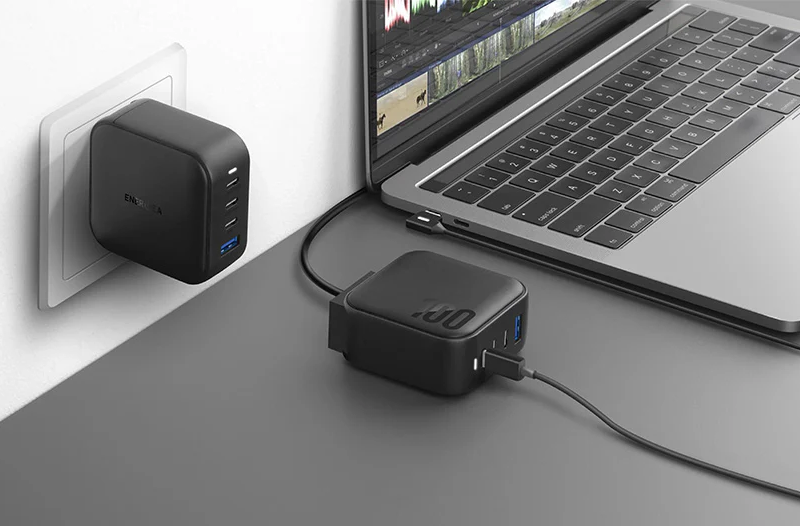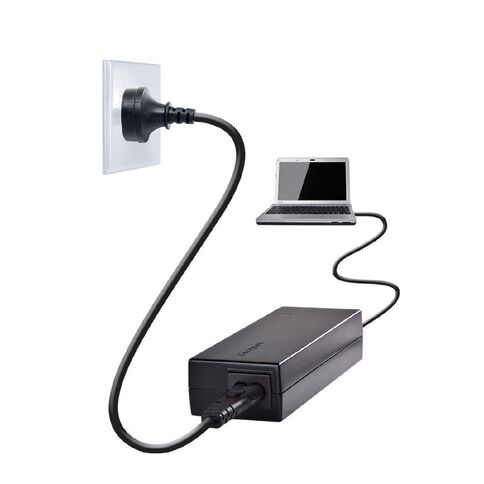
A reliable laptop charger is essential for keeping your computer running throughout the day. Whether you use a laptop for work, study, travel, gaming, or entertainment, the right charger can make a big difference in charging speed, portability, and battery performance.
If your laptop battery suddenly drains quickly, refuses to charge, or your original adapter has stopped working, you may be looking for an HP laptop charger, Lenovo laptop charger, Acer laptop charger, Dell laptop charger, or a convenient USB-C laptop charger.
This guide explains how to choose a suitable charger, what to do when your laptop battery life becomes short, and how to determine whether the battery itself may need replacement.
Why Is the Right Laptop Charger Important?
Laptop chargers are not always interchangeable. Different laptops may require different output voltages, currents, connector sizes, or charging protocols.
For example, an HP computer may require a specific HP laptop charger, while Lenovo, Acer, and Dell laptops can have their own charging specifications. Some newer laptops support USB-C Power Delivery, allowing users to charge them with a compatible USB-C laptop charger.
Before purchasing a replacement charger, check:
- Output voltage (V)
- Output current (A)
- Power rating (W)
- Connector type and size
- USB-C Power Delivery compatibility
- Laptop model and manufacturer requirements
Using a charger with the correct specifications helps maintain stable charging and reduces the risk of charging problems.
HP Laptop Charger, Lenovo Laptop Charger, Acer Laptop Charger, and Dell Laptop Charger
When replacing an original adapter, searching by the laptop brand and model is usually one of the easiest methods.
HP Laptop Charger
An HP laptop charger should match the voltage, wattage, and connector required by your specific HP laptop. Some HP models use traditional barrel connectors, while newer models may support USB-C charging.
Lenovo Laptop Charger
A Lenovo laptop charger can vary significantly between ThinkPad, IdeaPad, Yoga, and other product lines. Some models use USB-C charging, while others require proprietary connectors.
Acer Laptop Charger
For an Acer laptop charger, always check the model number printed on the bottom of the laptop or the specifications of the original adapter before purchasing a replacement.
Dell Laptop Charger
A Dell laptop charger may use a barrel connector or USB-C depending on the model. High-performance Dell laptops can also require higher-wattage adapters, particularly gaming and workstation models.
The safest approach is to compare the replacement charger’s specifications with those of the original charger.
USB-C Laptop Charger: A Convenient Charging Option
USB-C has become increasingly popular because one connector can support charging, data transfer, and display output.
A compatible USB-C laptop charger can be particularly useful for people who travel frequently. Instead of carrying several different power adapters, one USB-C charger may be able to charge a laptop, smartphone, tablet, or other compatible device.
However, not every USB-C charger can charge every laptop.
A laptop may require 45W, 65W, 90W, 100W, or more. If the charger does not provide sufficient power, the laptop may charge slowly, remain at the same battery percentage, or continue losing battery power while being used.
Universal Laptop Charger NZ: Is It a Good Choice?
For users searching for a universal laptop charger NZ, portability and compatibility are usually the biggest concerns.
Universal chargers can be useful when you own multiple laptops or frequently travel between locations. However, “universal” does not automatically mean compatible with every laptop.
Before buying one, make sure the charger supports:
- Your laptop’s required voltage
- Sufficient wattage
- The correct connector
- Appropriate charging standards
- Your laptop’s specific model
For USB-C laptops, also check whether the charger supports the required USB Power Delivery profile.
Why Does My Laptop Battery Life Become Short?
A laptop battery gradually loses capacity as it is used and charged. If your laptop used to last six hours but now lasts only two or three hours, battery degradation may be one of the main reasons.
Common symptoms include:
- Battery percentage drops quickly
- Laptop shuts down unexpectedly
- Battery lasts only a short time
- Battery percentage changes unusually quickly
- Laptop becomes dependent on the charger
- Battery drains rapidly during demanding applications
Software and usage habits can also affect battery life. High screen brightness, background applications, gaming, video editing, Wi-Fi, Bluetooth, and high-performance settings can all increase power consumption.
Therefore, short battery life does not always mean that the battery is defective.
What If the Laptop Cannot Charge?
A laptop that cannot charge may have a problem with the charger, charging port, battery, or internal charging system.
Try these basic checks:
- Disconnect the charger and reconnect it securely.
- Check whether the charging indicator turns on.
- Inspect the cable and connector for visible damage.
- Try another compatible power outlet.
- Test with a known-compatible replacement charger.
- Restart the laptop and check its battery status.
- Check whether the charging port is loose or damaged.
If the laptop works normally with another compatible charger, the original laptop charger may be the problem.
If the laptop still refuses to charge, the battery or charging circuit may require further inspection.
How to Tell If Your Laptop Battery Is Damaged
Knowing how to identify a damaged battery can help you avoid replacing the wrong component.
1. The Battery Drains Extremely Quickly
If the battery reaches 100% but drops to a very low level after a short period of normal use, its usable capacity may have significantly decreased.
2. The Laptop Suddenly Shuts Down
Unexpected shutdowns, especially when the battery still displays a relatively high percentage, can indicate battery degradation or inaccurate battery calibration.
3. The Battery Does Not Charge
If a compatible charger works correctly but the battery remains at the same percentage or the system reports that the battery cannot be charged, the battery may have reached the end of its service life.
4. Battery Health Is Very Low
Many laptops provide battery health information through their operating system or manufacturer diagnostic software. A significantly reduced full-charge capacity compared with the original design capacity is a strong indication of wear.
5. Physical Swelling
A swollen battery is a serious warning sign. If the laptop case begins to bulge, the touchpad rises, or the battery appears physically swollen, stop using the device and seek professional battery replacement. Do not puncture, squeeze, or disassemble a swollen lithium-ion battery.
How to Charge a Laptop Without a Charger
Many users search for how to charge laptop without charger, especially when traveling or when the original adapter is lost.
The safest alternative depends on the laptop.
USB-C Charging
If your laptop supports USB-C Power Delivery, a compatible USB-C charger or power bank may provide sufficient power.
USB-C Power Bank
Some high-output power banks are designed specifically for laptops. Make sure the power bank provides enough wattage and supports the required USB-C PD specifications.
Car Charger
For travel, a compatible car power adapter or USB-C PD car charger may be an option. Again, check the laptop’s required power before using it.
Universal Adapter
A properly configured universal laptop adapter may also work with certain laptops, provided that its output specifications and connector are compatible.
Avoid improvised charging methods or connecting a laptop directly to an unsuitable power source. Incorrect voltage or polarity can damage the computer.
Laptop Charging Solutions for Different Usage Scenarios
Working From Home
For home-office users, a reliable replacement charger can provide stable power throughout long working sessions. Keeping a spare charger at your desk can also reduce interruptions if the primary adapter fails.
Office Use
If you regularly move between home and office, having two compatible chargers can be convenient. One can remain at the office while the other stays at home.
Travel
Travelers generally benefit from a compact USB-C charger if their laptop supports USB-C Power Delivery. A single charger may also be useful for charging multiple compatible devices.
University and Study
Students often carry laptops between classrooms, libraries, cafés, and dormitories. A lightweight charger or compatible power bank can provide additional flexibility when wall outlets are unavailable.
Gaming and High-Performance Work
Gaming laptops and mobile workstations typically require more power than lightweight notebooks. Always use a charger that meets or exceeds the manufacturer’s recommended wattage.
Should You Replace the Charger or the Battery?
The symptoms can help determine which component is more likely to be responsible.
| Problem | Possible Cause |
|---|---|
| Laptop does not turn on with charger | Charger, cable, port, or motherboard |
| Charger works but battery drains quickly | Aging battery |
| Battery percentage stays unchanged | Battery or charging system |
| Charger gets unusually hot | Charger or power-delivery issue |
| Laptop works normally with another charger | Original charger may be faulty |
| Battery is swollen | Battery should be professionally replaced |
| Laptop charges very slowly | Insufficient charger wattage, cable, port, or battery issue |
If the charger is functioning normally but the battery capacity has become significantly reduced, replacing the battery may restore much of the laptop’s original unplugged runtime.
Choosing the correct laptop charger is just as important as choosing the right replacement battery. Whether you need an HP laptop charger, Lenovo laptop charger, Acer laptop charger, Dell laptop charger, USB-C laptop charger, or a universal laptop charger NZ, always verify compatibility before purchasing.
If your laptop has short battery life or cannot charge, first determine whether the problem comes from the charger, charging port, software, or battery. Checking battery health and testing with a known-compatible charger can help narrow down the cause.
For users who frequently travel, work remotely, study away from home, or use their laptop for long periods, keeping a reliable charger and a healthy replacement battery available can provide a much more dependable computing experience.