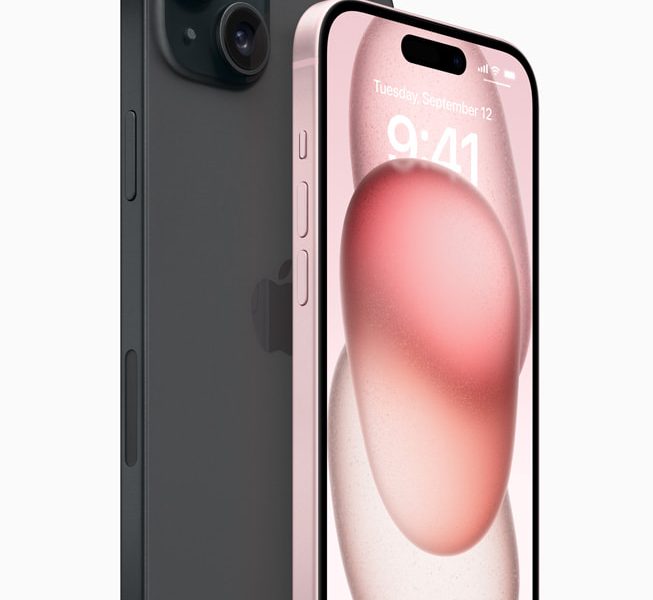
The iPhone 15 series offers powerful performance, advanced cameras and a bright display, but battery life remains an important consideration for everyday users. Whether you use your phone for work, streaming, photography or gaming, a battery that drains too quickly can interrupt your day.
If you are searching for information about the iPhone 15 battery, want to understand typical iPhone 15 battery life or need to know how to make your iPhone 15 Pro battery last longer, this guide explains the main factors that affect power consumption and the practical steps you can take to improve battery performance.
How Long Does the iPhone 15 Battery Last?
The actual battery life of an iPhone 15 depends on the model, battery condition, network connection, display settings and the applications you use. Browsing messages and making occasional calls usually consumes less power than recording video, playing demanding games or navigating with GPS for extended periods.
Apple publishes battery-life estimates for specific activities, such as video playback and streamed video playback. These figures are measured under controlled conditions and should not be treated as a guarantee of all-day battery life during mixed everyday use.
Battery performance can also change as the device ages. Over time, rechargeable lithium-ion batteries gradually lose some of their original capacity, meaning an older iPhone may need charging more frequently than it did when new.
What Affects iPhone 15 Battery Life?
- Screen brightness: A brighter display generally uses more energy.
- Background activity: Apps may refresh content or perform tasks when you are not actively using them.
- Mobile signal: Weak cellular coverage can increase power consumption.
- High-performance activities: Gaming, video recording and demanding apps can use substantial energy.
- Temperature: Very hot or cold conditions can affect battery performance.
- Battery age: Chemical aging gradually reduces the amount of charge a battery can hold.
How to Make Your iPhone 15 Pro Battery Last Longer
If you want to know how to make your iPhone 15 Pro battery last longer, start with the settings that have the greatest effect on daily power consumption. You do not need to disable every feature. A few targeted changes can help you balance battery life with the functions you use most.
1. Reduce Screen Brightness
The display can be a major source of power consumption, particularly when brightness is set high for long periods. Open Control Center and lower the brightness to a comfortable level. You can also enable Auto-Brightness in Settings under Accessibility and Display & Text Size.
On supported models and software versions, you can also review display-related features and adjust them to suit your needs. Keeping the screen at a practical brightness level can help reduce unnecessary battery use.
2. Enable Low Power Mode
Low Power Mode reduces or disables certain background activities and visual effects to conserve energy. It is especially useful when your battery is running low and you need your phone to last until your next opportunity to charge.
To enable it, open Settings, select Battery and turn on Low Power Mode. Depending on your iOS version, you may also be able to add the control to Control Center for quicker access.
3. Check Which Apps Use the Most Battery
An app that frequently runs in the background may contribute to unexpected battery drain. Open Settings, select Battery and review the battery usage information for individual apps.
If an app consumes unusually high amounts of power, check whether it needs background access, location permission or continuous activity. Update the app if a newer version is available, or adjust its settings when appropriate.
4. Manage Background App Refresh
Background App Refresh allows supported apps to update content when you are not actively using them. While convenient, frequent background updates can contribute to battery consumption.
Go to Settings, then General, and select Background App Refresh. Restrict background refresh for apps that do not need frequent updates. You can leave it enabled for applications where up-to-date information is important.
5. Optimize Location Services
Location services are useful for navigation, maps, weather and other features, but constant location access may increase energy use. Review the apps that request your location by opening Settings, Privacy & Security and Location Services.
Where appropriate, select a less frequent access option instead of allowing an app to use your location all the time. Keep precise location enabled for applications that genuinely require accurate positioning.
6. Use Wi-Fi When Practical
A weak cellular signal can cause your iPhone to use more power while maintaining a connection. When a reliable Wi-Fi network is available, connecting to it can help reduce cellular power consumption in some situations.
If you regularly use your phone in areas with poor mobile reception, consider how much time it spends searching for or maintaining a signal. Actual savings depend on network conditions and your usage.
7. Keep iOS Updated
Software updates can include bug fixes, security improvements and changes that affect system efficiency. Open Settings, select General and choose Software Update to check whether a newer version is available for your device.
After installing an update, battery consumption may temporarily increase while the phone completes background tasks such as indexing and synchronizing data. Allow some time for these activities to finish before deciding that the update has caused a persistent battery problem.
iPhone 15 Battery Health: How to Check It
If your iPhone 15 battery does not last as long as it used to, checking battery health can help you understand whether the battery has lost significant capacity. Apple provides battery information in the device settings, although the exact labels and available details can vary by iOS version.
How to Check iPhone 15 Battery Health
- Open Settings on your iPhone.
- Select Battery.
- Open Battery Health or Battery Health & Charging, depending on your iOS version.
- Review the maximum capacity and any service recommendations shown.
Maximum capacity compares the battery’s current capacity with its capacity when it was new. The percentage may gradually decrease with normal use and aging. A lower figure does not automatically mean that the battery must be replaced immediately; consider it alongside your actual battery life and any messages displayed by iOS.
If your phone shuts down unexpectedly, shows a battery service recommendation or has noticeably reduced runtime, consider having the battery assessed by Apple or an authorized service provider.
Does Charging Your iPhone 15 Overnight Damage the Battery?
Modern iPhones include charging-management features designed to help manage battery aging. Leaving your phone connected to power overnight does not automatically mean the battery will be damaged, provided you use suitable charging equipment and avoid excessive heat.
Optimized Battery Charging can help reduce the time your iPhone spends fully charged under certain conditions. Depending on the model and software version, additional charging-limit options may also be available.
Best Practices for Charging an iPhone 15
- Use a compatible, reputable charger and an undamaged USB-C cable.
- Avoid charging the phone in direct sunlight or other excessively hot environments.
- Keep the charging port and cable connector free from moisture and debris.
- Review Optimized Battery Charging and any available charging-limit settings.
- Do not deliberately discharge the battery to zero as a routine maintenance method.
The iPhone 15 series uses USB-C for wired charging. Charging speed depends on the adapter, cable, temperature, battery level and the particular model. Using a compatible power adapter helps provide a reliable charging experience.
Explore our range of iPhone chargers and USB-C chargers to find charging accessories suitable for your device.
Why Is My iPhone 15 Battery Draining So Fast?
If your iPhone 15 battery drains unusually quickly, check whether the problem started after installing an app, changing settings, updating iOS or spending time in an area with poor reception.
Common Causes of Fast Battery Drain
- High screen brightness or prolonged screen-on time.
- Apps performing frequent background tasks.
- Continuous location tracking or navigation.
- Weak cellular coverage.
- High temperatures or demanding camera and gaming sessions.
- A battery that has experienced significant chemical aging.
Start by reviewing battery usage in Settings. If a single app accounts for an unusually large share of consumption, investigate its activity first. Restarting the phone and installing available updates may also help resolve temporary software issues.
If the battery continues to drain quickly despite reasonable settings and normal usage, check Battery Health and consider a professional diagnosis. Persistent drain can sometimes indicate a battery problem or another hardware issue.
When Should You Replace an iPhone 15 Battery?
Rechargeable batteries gradually wear out, so replacement may eventually be necessary. However, battery drain alone does not prove that the battery is defective.
Consider seeking a battery assessment if:
- The battery life has declined significantly compared with your previous experience.
- The phone unexpectedly shuts down under normal conditions.
- iOS displays a battery service recommendation.
- The battery becomes unusually hot during ordinary use or charging.
- The device or battery shows signs of swelling or physical damage.
If you notice swelling, stop using and charging the device and arrange professional service. Do not press, puncture or attempt to remove a damaged battery yourself.
For a replacement, choose a battery and repair service that are appropriate for the exact iPhone model. Battery replacement involves delicate components, and an inexperienced repair can damage the device or compromise its safety.
You can also browse our mobile phone batteries category for available replacement options. Always confirm model compatibility before ordering.
Frequently Asked Questions About iPhone 15 Battery Life
How long should an iPhone 15 battery last in a day?
Daily battery life varies according to screen time, network conditions, applications, temperature and battery health. Apple publishes model-specific video playback estimates, but real-world results can differ considerably.
How can I make my iPhone 15 Pro battery last longer?
Reduce screen brightness, enable Low Power Mode when needed, review battery usage by app, limit unnecessary background activity and manage location permissions. Keeping iOS updated and avoiding excessive heat can also help.
Does Low Power Mode improve iPhone 15 battery life?
Low Power Mode reduces or limits selected background activities and system features to conserve energy. It can help your iPhone last longer between charges, particularly when the battery is running low.
Why does my iPhone 15 lose battery overnight?
Background activity, notifications, poor cellular reception and software processes can contribute to overnight battery drain. Review battery usage in Settings and check whether the phone is repeatedly working to maintain a weak network connection.
Should I charge my iPhone 15 to 100% every day?
You can charge your iPhone as needed. You do not have to fully discharge the battery before charging it again. Charging-management features can help manage battery aging, and the best routine depends on your daily usage.
When should I replace my iPhone 15 battery?
Consider a professional assessment if battery capacity has declined significantly, the phone shuts down unexpectedly or iOS recommends service. The decision should take battery health, real-world runtime and device condition into account.
Get More from Your iPhone 15 Battery
Improving iPhone 15 battery life does not require turning off every useful feature. Simple changes to display brightness, background activity, location permissions and charging habits can help reduce unnecessary power consumption.
If you want to know how to make your iPhone 15 Pro battery last longer, begin by identifying which apps and activities use the most energy. Then check battery health to determine whether normal aging may be contributing to the problem.
With suitable charging accessories, sensible settings and proper battery care, you can make the most of your iPhone 15 throughout the day. If performance remains poor, a professional battery assessment can help you decide on the next step.