If you own an MSI GL65 9SEK gaming laptop, you already know the trade-off: serious performance on tap, but a battery that never seems to last. The good news is that most of the frustration people blame on the laptop comes down to one accessory — the 180W A15-180P1A charger. Getting the right replacement (or understanding why your current one is failing) fixes most “my battery won’t charge” and “my gaming laptop dies too fast” complaints on the GL65 9SEK.
This guide walks through everything you need to know: what the A15-180P1A charger actually is, why short battery life is normal on this machine, what to do when the battery refuses to charge, how to test whether the battery is genuinely dead, and the real-world scenarios where the correct 180W power supply matters most.
Quick Answer: The Key Facts
| Item | Specification |
| Part numbers | A15-180P1A, A180A012L, A180A019L |
| Output | 19.5V / 9.23A |
| Total power | 180W |
| Input | 100–240V, 50–60Hz |
| Connector | 7.4 × 5.0mm barrel with center pin (some variants 5.5 × 2.5mm) |
| Weight (brick only) | ~620g |
| Compatible laptops | MSI GL65 / GL65 9SEK / GL65 Leopard, GL63 9SE, GP65, GP75, GE63 9SE, GL75 9SD, GE75 Raider 9SE, and more |
| Original laptop battery | 51Wh, 6-cell Li-ion (10.86V / 4730mAh) |
What Makes the A15-180P1A Charger the Right Fit for the GL65 9SEK
The MSI GL65 9SEK is a full-size gaming laptop built around an Intel Core i7-9750H processor and an NVIDIA GeForce RTX 2060 GPU. Under load, that combination can pull well over 100W on its own — before you even count the 15.6-inch 120Hz display, cooling fans, and storage.
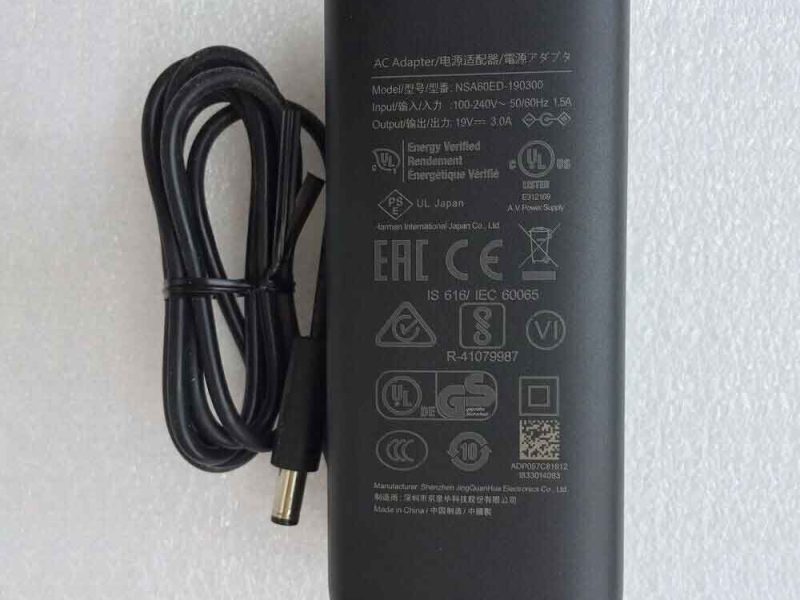
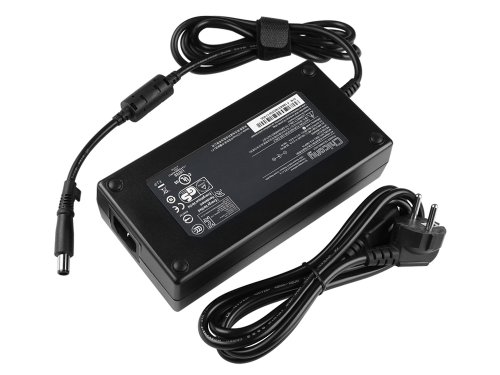
That’s why MSI ships this machine with a 180W adapter. The A15-180P1A (made by Chicony, also sold as A180A012L and A180A019L) is the original power supply designed for exactly this power draw. It delivers 19.5V at 9.23A through a 7.4 × 5.0mm barrel connector with a center pin — the slim tip MSI uses on its gaming line.
Common reasons people look for a replacement:
- The original charger was lost or left behind on a trip or at a second desk.
- The cable frayed near the plug after years of being coiled into a backpack.
- The brick stopped working — no LED, no charge, or intermittent power.
- A second charger is needed so you don’t have to unplug and re-cable your setup every time you move.
Whether you choose a genuine Chicony unit or a high-quality compatible adapter, verify the certifications (CE, FCC, RoHS) and look for built-in protection against over-voltage, over-current, and short circuits. A cheap, uncertified brick is the fastest way to turn a $30 problem into a $300 repair.
Why Your MSI GL65 9SEK Battery Life Is So Short (It’s Not Always a Fault)
The GL65 9SEK has a 51Wh battery. For a 1080p gaming laptop with an RTX 2060, that is genuinely small — even reputable reviewers of this exact model list “short battery life” as its single biggest weakness.
Here’s what to expect and why:
- Light use (web browsing, documents): roughly 3–5 hours on a full charge.
- Video streaming: around 2–3 hours.
- Gaming on battery: often under 60–90 minutes, and often at reduced performance.
Three things are happening at once:
- High-wattage components. The i7-9750H and RTX 2060 are desktop-class parts squeezed into a portable chassis. They simply consume more power than a thin-and-light ultrabook.
- The GPU wants far more than the battery can give. When you unplug, the laptop drops into a power-limited mode, cutting GPU wattage and often switching to the Intel integrated graphics to survive on battery.
- The 180W charger is sized for plugged-in gaming, not battery runtime. The battery exists mostly as a buffer and for light portable use — not as a primary power source for gaming.
So if you feel the battery “dies too fast,” that’s frequently normal design behavior, not a defect. The real red flags appear when the numbers change sharply from what they used to be — which brings us to the next section.
Battery Won’t Charge? Diagnose the Problem in the Right Order
When a laptop stops taking a charge, the cause is almost always one of four things: the charger, the charging port (DC jack), the battery itself, or a software/thermal issue. Testing the charger first is smarter because it’s the cheapest and fastest thing to check.
Step 1 — Check the charger brick
Plug the adapter into the wall but not into the laptop. Most bricks have a small LED.
- LED off: try a different outlet, then check the power cord that runs from the wall to the brick (the figure-8 or cloverleaf cable). Wiggle it near the brick — if the LED flickers, the cord is dead. If the LED still won’t light with a known-good cord, the brick itself has failed and needs replacing.
- LED on: the brick is energized. Move to Step 2.
Step 2 — Plug into the laptop and watch the LED
- LED stays steady: the adapter is supplying power correctly. Move to Step 3.
- LED dims, flickers, or goes out: the laptop is drawing more current than the adapter can deliver — either it’s the wrong (underpowered) replacement, or there’s a fault on the laptop side. Make sure you’re using a true 180W / 19.5V / 9.23A unit.
Step 3 — Wiggle test at the port
With everything plugged in and the laptop on, gently move the barrel plug where it enters the laptop. If the on-screen charging indicator blinks on and off, the DC jack inside the laptop is loose or cracked — common on machines that get moved around a lot. This is a soldering repair, not a plug-and-play part.
Step 4 — Read the Windows battery report
This is the single most useful diagnostic. Open Command Prompt or PowerShell as administrator and run:
Windows generates an HTML file (path is shown in the output — usually in your user folder). Open it and compare two numbers:
- Design Capacity — what the battery held when new (about 51Wh on the GL65 9SEK).
- Full Charge Capacity — what it holds now.
Step 5 — Interpret what you see
| Symptom | Most Likely Cause | Fix |
| Laptop shuts off instantly when unplugged | Dead battery | Replace battery |
| “Plugged in, not charging” at 0% | Worn battery or driver glitch | Battery report, then battery |
| Charging flickers when the plug moves | Loose DC jack | Port repair |
| Works with a different charger | Failed charger | Replace charger |
| Runs but never gains charge on any charger | Battery at end of life | Replace battery |
| Battery stops charging when hot | Thermal protection | Cool down, clear vents |
How to Tell If Your Battery Is Actually Damaged (Not Just Old)
Aging and damage look similar at first, but they call for different responses. Here’s how to separate them.
Signs the battery is simply worn (normal aging)
- Full Charge Capacity has dropped steadily over time — this is expected after 500–1,000 charge cycles.
- The laptop still works, but runtime is noticeably shorter than when new.
- The battery report shows a gradual decline rather than a sudden cliff.
Rule of thumb: once Full Charge Capacity falls below about 60% of Design Capacity, the battery is effectively end-of-life and replacing it is reasonable.
Signs the battery is damaged (act now)
- The chassis bulges, the trackpad becomes hard to click, or the laptop no longer sits flat — this means battery swelling, and it is a safety issue. Stop using the laptop and replace the battery immediately.
- The percentage jumps wildly, e.g. dropping from 45% to 30% in a minute, or the laptop dies at 30–40%.
- It charges to only a low number (0–10%) and stalls, even across multiple known-good chargers.
- The laptop only runs while plugged in and shuts off the instant you pull the cord.
- You smell burning or see scorch marks near the port or battery — unplug immediately and seek professional service.
A quick calibration test (do this once, not weekly)
If the percentage seems “confused” rather than dead, a one-time calibration can help:
- Charge to 100% and keep it plugged in another 30 minutes.
- Unplug and use it normally down to about 10%.
- Save your work and let it run until it forces a shutdown.
- Leave it off for 30 minutes, then charge back to 100% without interruption.
If the percentage still collapses in big jumps after calibration, you’re seeing aging cells — replace the battery.
Real-World Use Scenarios for the 180W A15-180P1A Charger
Understanding when the proper 180W supply matters most helps you get the right replacement.
1. Competitive and AAA gaming sessions
This is where the 180W rating is non-negotiable. During heavy gaming, the GL65 9SEK’s CPU and GPU can collectively demand far more than a small travel charger can supply. Use an underpowered adapter and you’ll see the battery drain even while plugged in, plus dropped frame rates and reduced GPU power. A correct 180W charger keeps performance stable and the battery in float charge.
2. Office, study, and everyday productivity
For browsing, documents, and video calls, power draw is low. Here the battery carries you for a few hours, and the 180W charger simply tops it up. A second adapter at the office means you never have to haul the brick back and forth — a common reason people buy a replacement.
3. Travel and commuting
The A15-180P1A brick weighs about 620g, so it’s noticeable in a bag but far from the heaviest gaming adapter. Keep the original charger for the desk and pack a compatible spare for travel, so a frayed cable at home never strands you.
4. Video editing, rendering, and 3D work
Sustained CPU/GPU workloads behave like gaming — high, continuous power draw. The 180W supply keeps the system from throttling or leaning on the battery during long renders.
5. A dedicated second workstation
Many GL65 9SEK owners keep one charger at home and one at a dorm, office, or partner’s place. Buying a second A15-180P1A means you always leave with a full battery instead of unplugging your whole setup.
Buying the Right Replacement: A Checklist
Before you click “buy,” confirm:
- Voltage: 19.5V — do not substitute 19V or 20V.
- Amperage: 9.23A (or higher at the same voltage is generally safe, but exact match is best).
- Wattage: 180W — matching the original is ideal; a higher-rated compatible unit is fine, a lower-rated one is not.
- Connector: 7.4 × 5.0mm barrel with center pin (confirm against your old plug; some listings use 5.5 × 2.5mm).
- Certifications: CE / FCC / RoHS and built-in over-voltage, over-current, and short-circuit protection.
- Warranty — a reputable seller offers at least 12 months.
What to avoid: no-name adapters with no certification, plugs that feel loose in the port, and bricks that buzz, smell, or get too hot to touch. Heat is normal for a 180W unit, but a charger you can’t comfortably hold is a failing one.
Practical Tips to Extend Battery and Charger Lifespan
A few habits keep both your battery and your charger working longer:
- Gaming plugged in is fine and intended. For serious sessions, use the 180W adapter rather than running the battery down.
- Don’t coil the cable tightly around the brick. It stresses the wire right where it fails most — near the connector.
- Cap your frame rate to your display’s refresh rate (120Hz here) to reduce power spikes and heat.
- Keep vents clear. Never game on a bed or sofa; heat pauses charging and ages the battery.
- Use the 80% charge limit if you mostly stay plugged in — it slows long-term capacity loss.
- Check the battery report every few months so you spot a decline before it becomes a failure.
- Replace a frayed cable or failing adapter early. A marginal connection is far more harmful under high power draw.
Frequently Asked Questions
Is it safe to use a 180W charger on the MSI GL65 9SEK? Yes — 180W is exactly what this laptop requires, and the A15-180P1A is the original design.
Can I use a lower-wattage charger for light use? It may run the laptop for browsing, but expect slow charging and possible battery drain during gaming. For anything demanding, use the full 180W.
Why does my battery drop while I’m plugged in and gaming? Usually because the adapter can’t meet peak demand. Confirm you’re using a genuine 180W / 19.5V / 9.23A unit with the correct connector.
How long should the 51Wh battery last? Roughly 3–5 hours of light use and under 1.5 hours of gaming — short battery life is a known trait of this model, not a defect.
How do I know if my battery is dead or just old? Run powercfg /batteryreport and compare Full Charge Capacity to Design Capacity. Under ~60% means end-of-life; sudden shutdowns or swelling mean it’s damaged and should be replaced now.
Does a wrong adapter damage the laptop? Yes. Incorrect voltage or an uncertified, low-quality brick can harm the charging circuit or motherboard. Always match voltage, amperage, and connector.
The 180W A15-180P1A charger is the correct power supply for the MSI GL65 9SEK — a machine whose short battery life is a known design trait, not usually a fault. The three problems owners run into most often — short runtime, a battery that won’t charge, and uncertainty about whether the battery is dead — all come down to diagnosis: check the charger first, read the battery report second, and inspect for damage third. Get the wattage and connector right, replace genuinely worn parts early, and your GL65 9SEK will keep gaming the way it was meant to.